

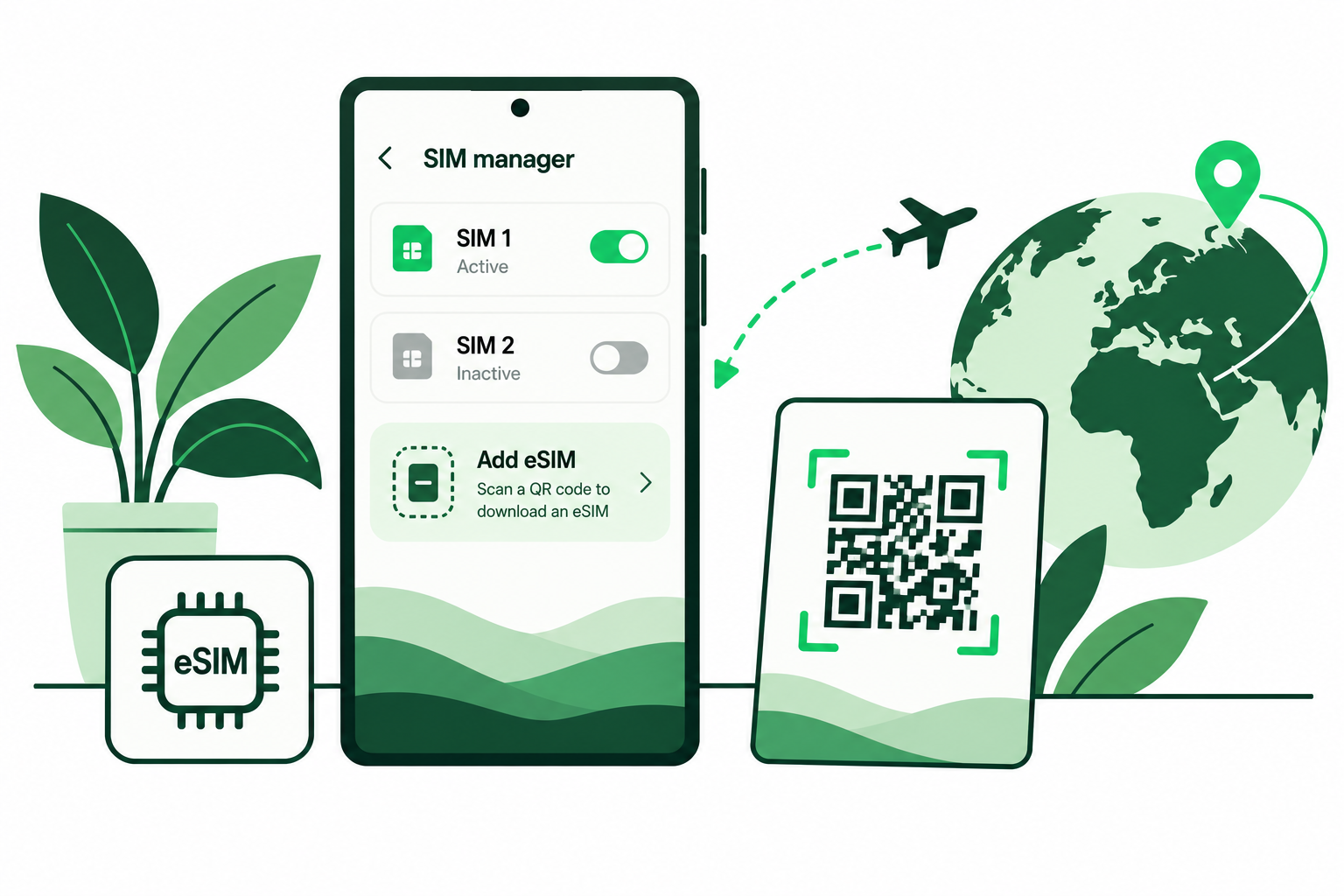
To install eSIM on Samsung Galaxy, use SIM manager on a compatible model and follow your provider’s setup instructions. Check the model and regional version first: the Galaxy name alone does not confirm eSIM support.
Prepare your Galaxy phone
Connect to Wi-Fi and confirm the handset is network unlocked if you are adding a different provider. Have the QR code or activation details supplied with your purchase ready. Check the plan’s start rule before installing, particularly if your trip is still weeks away.
Save the order reference and support details. You may need another screen to display the QR code while your Samsung phone scans it.
Install eSIM on Samsung with a QR code
- Open Settings and tap Connections.
- Open SIM manager and choose Add eSIM.
- Choose Scan QR code when the option is available.
- Scan the code supplied by your provider and approve the download prompts.
- Restart if prompted, then review the new profile in SIM manager.
Some software versions say SIM card manager or Add mobile plan. Your phone may also discover an assigned carrier plan. Use the method described for your purchase rather than assuming every activation uses a QR code.
Set your travel data preferences
Label the new line Travel or Teliny so it is easy to distinguish from Home. Choose it for mobile data in SIM manager. Keep your preferred calling and messaging SIM selected separately, where your device allows those choices.
Follow the travel plan’s roaming instructions and keep home-line data roaming off if you do not want to use it abroad. Review data switching or backup-data features; they may allow another line to provide data.
What to check if it does not work
- No Add eSIM option: verify the exact model, region and software with Samsung.
- Code rejected: check it belongs to this order and has not already been used.
- Profile installed but no data: confirm coverage, validity, selected data line and required settings.
Do not repeatedly remove and rescan the profile. Contact Teliny support with the error and whether it happens during download or after arrival. Your provider can distinguish an installation problem from a network-connection issue.
Common questions
Can I keep my physical SIM?
Often yes on a supported dual-SIM model. Check the active-SIM combinations your exact Galaxy supports.
Can I enter details manually?
Use manual entry only if the option is available and your provider supplied the required activation information.
Sources & guide notes
Checked 18 October 2026. Samsung’s official SIM and eSIM instructions
Published by Teliny. Product availability and settings can change. Follow the instructions for your exact device and selected package. Third-party names identify the products discussed and do not imply endorsement.