

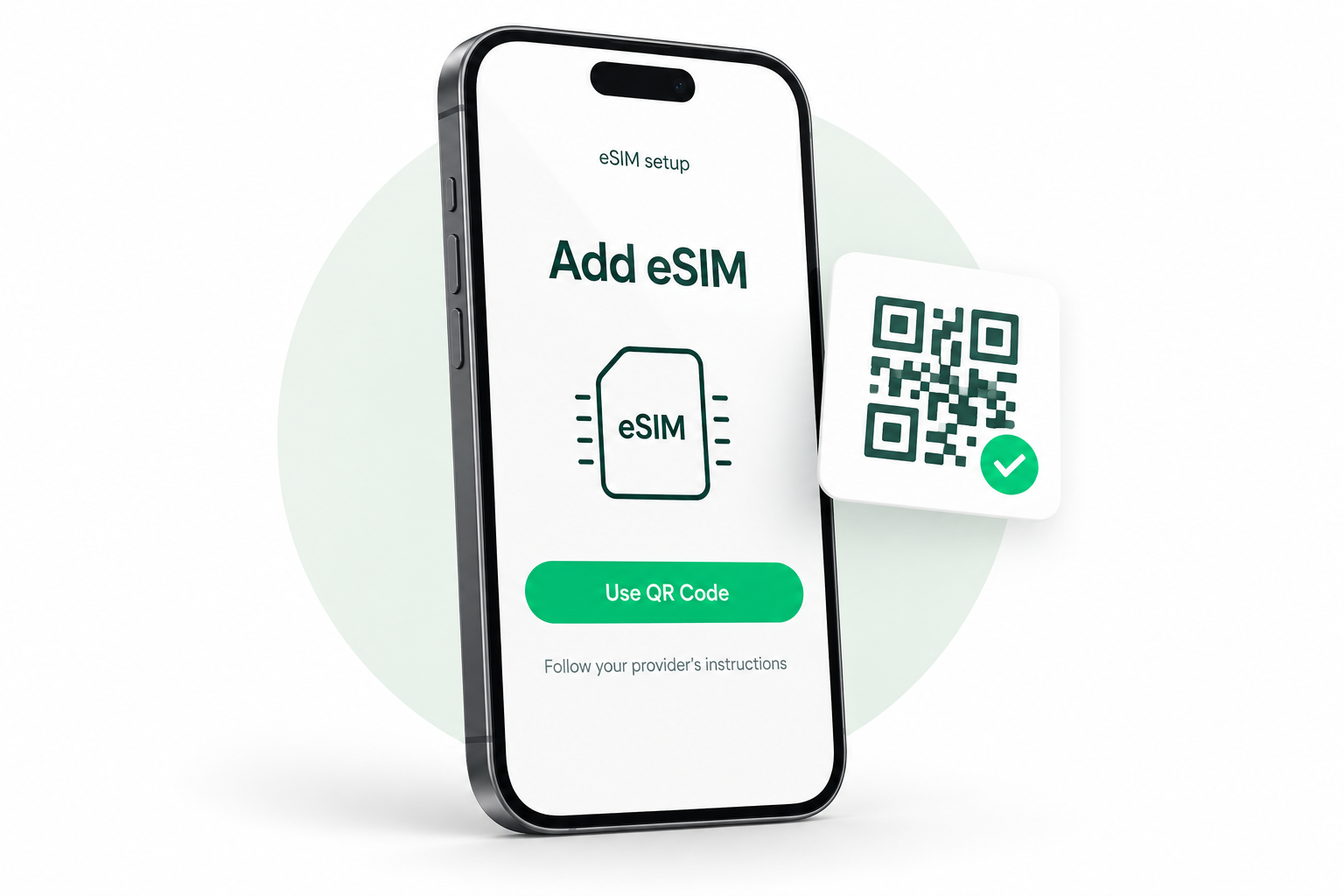
Want to install eSIM on iPhone before your next trip? This iPhone eSIM setup guide covers preparation, QR-code installation and the settings to review before using your travel data.
Have your iPhone, a reliable internet connection and the installation details supplied with your plan ready. Also, read the package’s activation rules before starting: installation and the start of paid validity are not always the same event.
Before you install eSIM on iPhone
Check support for your exact iPhone model and purchase region. For a plan from another provider, check Settings → General → About → Carrier Lock. An unlocked iPhone shows No SIM Restrictions. If it is locked, contact your existing carrier.
Next, choose a package that covers your destination and travel dates. Think about maps, messaging and video calls, then compare the allowance and validity. Our travel data plans give you a place to start.
Keep the order reference somewhere accessible. However, treat your installation QR code and activation details as private. They belong to your connection, so avoid posting them in public screenshots or sending them to an unknown support account.
Install eSIM on iPhone with a QR code
Connect to Wi-Fi or a reliable hotspot. Then, use the QR code supplied by your provider:
- Display the QR code on another screen or a printed copy.
- Open Camera on your iPhone and scan the code.
- Tap the cellular-plan notification that appears.
- Follow the setup prompts, including Continue and Add Cellular Plan where shown.
- Enter a confirmation code only if requested and supplied by your provider.
On iOS 17.4 or later, a supported QR code in the default email app or browser can also be pressed and held; choose Add eSIM. Available wording and options can vary.
If your provider supplied manual details instead, open Settings, choose Cellular or Mobile Data, then the option to add a cellular plan and Enter Details Manually. Use the information exactly as supplied.
iPhone eSIM setup: choose your travel data line
After setup, select the intended line under Settings → Cellular → Cellular Data. Give your plans clear labels so that you can recognise the travel connection and home line.
Keeping your home line active may still incur roaming charges. Check its calling, messaging and roaming terms separately. A travel data package does not automatically cover activity on your original line.
Follow the instructions supplied with your travel package for Data Roaming, APN settings and activation timing. In particular, avoid copying settings from a different provider simply because the screen looks similar.
Once you reach a covered destination and the package should be active, try loading a simple webpage with Wi-Fi switched off. This helps you check the travel connection rather than the airport or hotel network. Afterwards, restore Wi-Fi whenever you want to use it.
If your iPhone eSIM does not connect
First, confirm that the plan covers your location and should already be active. Also, check your package’s remaining data and validity in the account or instructions provided with your purchase.
Apple recommends trying Airplane Mode on and off, checking whether the cellular line appears and toggling that line off and on, then restarting the device. Keep iOS updated to the latest version your iPhone supports.
You can also check carrier settings in Settings → General → About and follow any available update prompt. If setup still fails, contact your provider with the exact error message.
For Teliny, use the Help Centre and keep your order reference available. Describe whether the problem happens during installation or after arrival. That distinction helps support understand the issue without guessing.
Install eSIM on iPhone: common questions
Can I install an eSIM before travelling?
Check your package’s installation and activation rules first. The moment you add the profile may differ from when the plan’s validity begins. Follow the instructions supplied with your order.
Can I add eSIM on iPhone without scanning a QR code?
If your provider supplies manual activation details, use the manual-entry option described above. Supported QR codes in a default email app or browser may also offer Add eSIM when pressed and held on compatible iOS versions.
Will the travel eSIM replace my usual number?
Adding a travel data plan and transferring your existing number are different tasks. Check the package’s included services and keep your intended home line settings under review.
Where can I find more Teliny setup help?
Open the installation details supplied with your plan, then use the installation guide or Help Centre if you need further assistance.
Choose your connection before you go
A little preparation makes arrival easier. Compare the destination, validity and allowance before buying. Then, keep the installation instructions accessible for the journey.
You can also check free trial availability. Eligibility, email verification and trial terms apply; a trial is not guaranteed for every destination or customer.
Sources & guide notes
Checked 18 October 2026 against Apple’s eSIM setup instructions, international travel guidance and eSIM troubleshooting. Menu labels vary by iOS version and region. Follow your provider’s package-specific instructions.
Published by Teliny. iPhone is an Apple trademark. This guide does not imply Apple affiliation or endorsement.